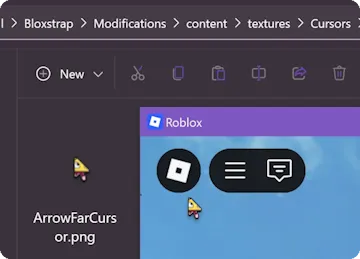
How Open Mod Folder (Custom Textures & Skyboxes) works in Bloxstrap
Mirrors any file inside `%LocalAppData%\Bloxstrap\Modifications\` into the active Roblox version directory on every launch.
When you toggle **Mods → Open Mods Folder** inside Bloxstrap Settings, the bootstrapper places the replacement asset at `%LocalAppData%\Bloxstrap\Modifications\` inside the active Roblox version folder every time you launch a game.
Keeping your mod active across Roblox updates
Standard manual file edits in `%LocalAppData%\Roblox\Versions` are wiped out every Wednesday when Roblox pushes a new client hash. Bloxstrap stores your customizations inside `%LocalAppData%\Bloxstrap\Modifications` and re-applies them automatically.
Need the latest build? Grab the Windows installer from /download and open **Bloxstrap Menu** from your Start Menu.
Frequently asked questions
Where do I turn on Open Mod Folder (Custom Textures & Skyboxes) in Bloxstrap?
Open Bloxstrap Settings from the Windows Start Menu, navigate to **Mods → Open Mods Folder**, click Save, and launch Roblox.
Can using Open Mod Folder (Custom Textures & Skyboxes) get my Roblox account banned?
No. Client-side asset replacements inside the local `content/` folder are standard file overrides and do not inject into game memory.